
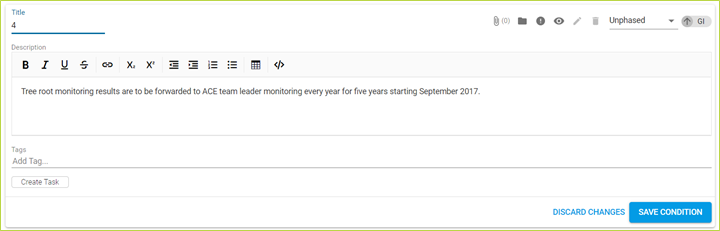
Tasks are the key driver for managing and maintaining condition compliancy. A condition with no tasks implies no work is needed on the condition, and the condition is regarded as compliant. In CS-VUE you can have more than 1 task per condition which is very important for Conditions that may have multiple actions.
Tasks allow effective delegation of work to task owners who sign off on the requirements of conditions to ensure compliancy, while explicitly displaying the amount of work involved.
You must edit a condition to create tasks, and can either discard changes or save the condition once your tasks are created.
Click on the "Create Task" button to add a new task.
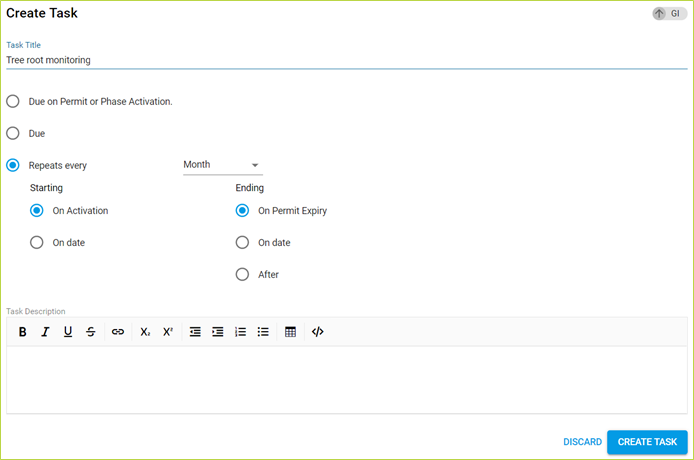
Task title: is required. Title the task as succinctly as possible. Recommended: Use a title with no verbs, e.g. “Contractor report”, “Maximum effluent discharge”, “Monitoring results”, “Turbidity measurement”.
Task due options (any 1 of 3). Required
Due on Permit or Phase Activation: Condition becomes non-compliant if in active phase.
Due (default, current date): Condition becomes non-compliant if in active phase and date in the past.
Repeats every: Select repeating interval from the drop down list. Custom allows choice of number of days, weeks, months or years.
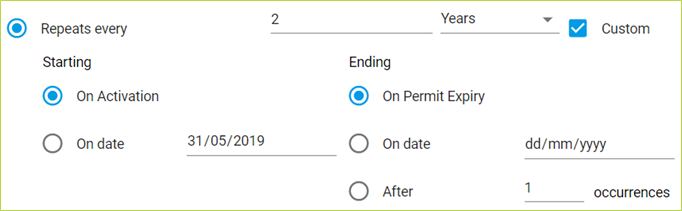
Starting on Activation (default): First instance of task occurs once permit or condition activated, condition becomes non-compliant
Starting on date (defaults to current date): First instance of task occurs on date, condition becomes non-compliant if in active phase and date in the past.
Ending on Permit Expiry (default): Task does not repeat past permit expiry date
Ending on date: Task does not repeat past date
Ending after X occurrences: Task repeats only X times
Additional information relevant to the task or assists in completion, not otherwise contained in the condition text. Recommended: Use action verbs, with additional information not available in condition text. Do not repeat condition text unless required for clarity or decision.
Click on "Create Task" to add the task to the condition. You must still click "Save Condition" to keep all tasks created.
Selecting "On Activation" means you don’t need to know an exact date, and you can use the permit active status or condition phase activation to control when your tasks become active.
Comments
0 comments
Please sign in to leave a comment.