
The Search feature in CS-VUE is very powerful and provides search returns that can be built upon to rapidly find the exact results you are seeking.
The Search function looks across keywords, tags, owners, holders, grantors, locations and across all Documents, Collections, Tasks and titles to name a few.
The Search bar is found at the top of the application.
Start typing your search term in the box, after 3 characters have been entered responses will be returned and be continually refined as you type. Pressing enter will default to the keyword option using everywhere, this searches all fields for the text typed.
The Search refinement menu gives the number of results to help validate your search criteria.

Advanced Searches
You can add unlimited search terms (chips) but you won't need more than 5.
Below is an example of searching by a users name (Glen). Once we have selected the result we want we can move onto the second search term. In this example our second term is water.
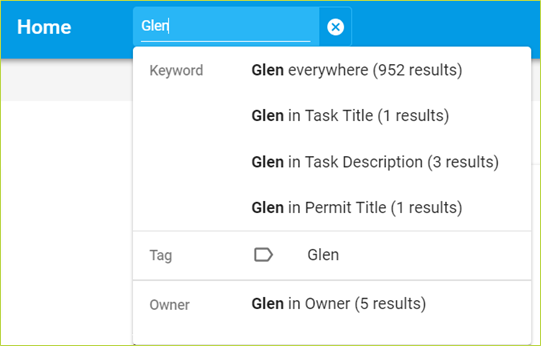
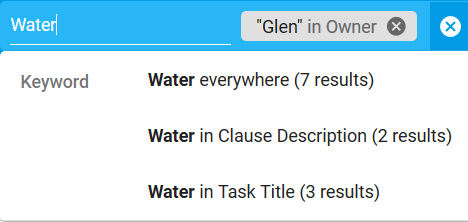
Your search results will now return all Documents, Collections etc. where the defined terms are applicable, i.e. where "Glen" is the owner and water is included. You may then select one of the results, for the example shown above if you select Task Title, your total results would be 3 items.
Saving Your Search
Click on the SAVE SEARCH button to save this search. Any new document matching the search parameters is automatically added. Saved searches have similar functionality as Collections, including reporting and printing, but is dynamic as described above. Ownership of the Saved Search does not grant access to the contents. Anyone using a Saved Search will see only contents they have access to.
Click on the SAVE AS COLLECTION button to save these search items as a Collection. Unlike a Saved Search, a Collection is static and does not change unless manually amended. Ownership of the Collection does grant access to the contents.
Comments
0 comments
Please sign in to leave a comment.